
Will FL Studio Work With OneDrive? Understanding the Cloud Path Warning
Table of Contents
Introduction
Over the past decade of following FL Studio questions across Reddit, Facebook groups, YouTube comments, and various music production forums, there is one technical topic that consistently resurfaces more than any other, and with the greatest amount of conflicting answers and outright misinformation. That topic revolves around a common message many newer users encounter shortly after installing FL Studio: the cloud path warning.
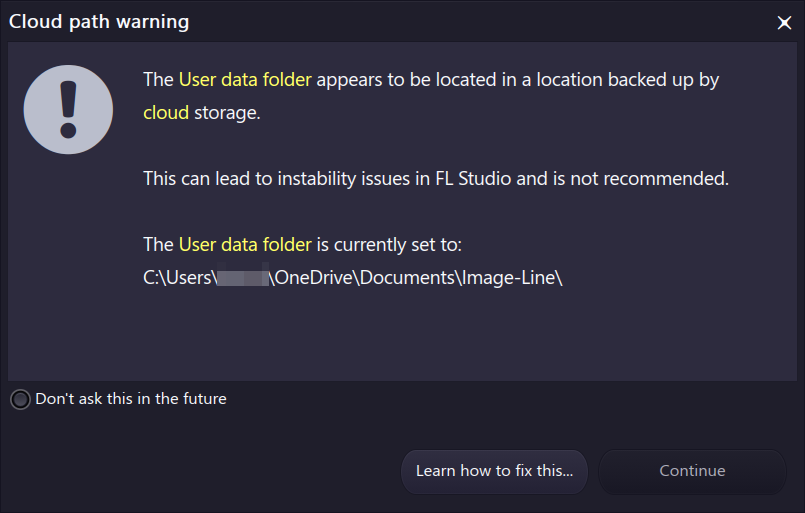
When this warning appears, newcomers often panic and rush to ask the internet what they should do next. Unfortunately, the most common advice they receive is to immediately disable or uninstall OneDrive altogether, often framed as if OneDrive were some kind of virus or dangerous system component that will corrupt or destroy their projects. In most cases, these responses come either from users who are strongly biased against Microsoft products or from people who simply do not understand how OneDrive works at a fundamental level.
While this warning is not exclusive to Microsoft OneDrive, the vast majority of instances where FL Studio users encounter it are directly related to OneDrive’s integration with Windows. By default, FL Studio’s User Data Folder is stored inside the Documents directory, one of the primary locations Windows offers to OneDrive for automatic cloud backup and synchronization.
For the purposes of this article, I’ll focus on OneDrive specifically. However, the same principles apply if your User Data Folder resides in any cloud-backed location, including Google Drive, Dropbox, iCloud, or similar services. This is not about OneDrive alone, it’s about how FL Studio interacts with synchronized file paths.
The goal of this blog is to answer one simple question clearly and accurately:
Can you safely use FL Studio with OneDrive?
What Is OneDrive?
Before we can talk about whether FL Studio is compatible, it’s important to first establish what Microsoft OneDrive actually is and how it works at a technical level. A large portion of the misinformation surrounding OneDrive exists simply because many people do not understand how the service operates, or how it integrates with Windows in the first place.
You’ll often see claims repeated online such as “OneDrive isn’t real backup,” “OneDrive breaks applications,” or “OneDrive deletes your files.” In most cases, these statements are not rooted in OneDrive’s actual behavior, but rather in misunderstandings about file synchronization, folder redirection, or user-controlled settings.
So before addressing FL Studio specifically, let’s strip away the myths and clearly explain what OneDrive is, what it is not, and how it interacts with files on your system.
What is Cloud Storage?
I’m not going to assume any particular technical background from readers, so let’s start with the basics.
At its core, cloud storage is simply storage space that exists outside of your physical device. Normally, the files on your computer, laptop, or phone live directly on that device’s internal hard drive or SSD. Cloud storage adds an additional location where those same files can be stored, on hard drives housed in remote data centers rather than inside your own machine.
These data centers are owned and operated by large companies and contain massive collections of physical storage devices. In exchange for a recurring fee (for example, a few dollars per month), you’re allocated a certain amount of space on those remote systems where your files can live and be accessed over the internet.
Importantly, cloud storage by itself does not change how files behave, it simply provides another place for them to exist. What determines how cloud storage interacts with your day-to-day workflow depends on how it is connected to your operating system, which we’ll get into shortly.
📦 Common consumer cloud storage services include:
Microsoft OneDrive
Google Drive
Apple iCloud
Dropbox
Backblaze
What Makes OneDrive Different?
Microsoft OneDrive is distinct from many other cloud storage services primarily because of how deeply it integrates with Microsoft Windows itself.
When you first set up a Windows computer, you create a user account. Each user account has a predefined set of common folders, such as Documents, Pictures, Desktop, Music, and Videos, which applications may rely on heavily. These locations are not arbitrary; many programs assume they exist and use them by default.
On most modern Windows systems, OneDrive comes pre-installed. Once enabled, it can integrate directly with these common folders through a feature Microsoft calls folder backup. Rather than you manually choosing folders to upload, OneDrive may automatically take over certain “important PC folders” and keep them synchronized with the cloud in real time.
You can see exactly which folders are affected by opening OneDrive, going to Settings → Sync and backup, and clicking Manage backup
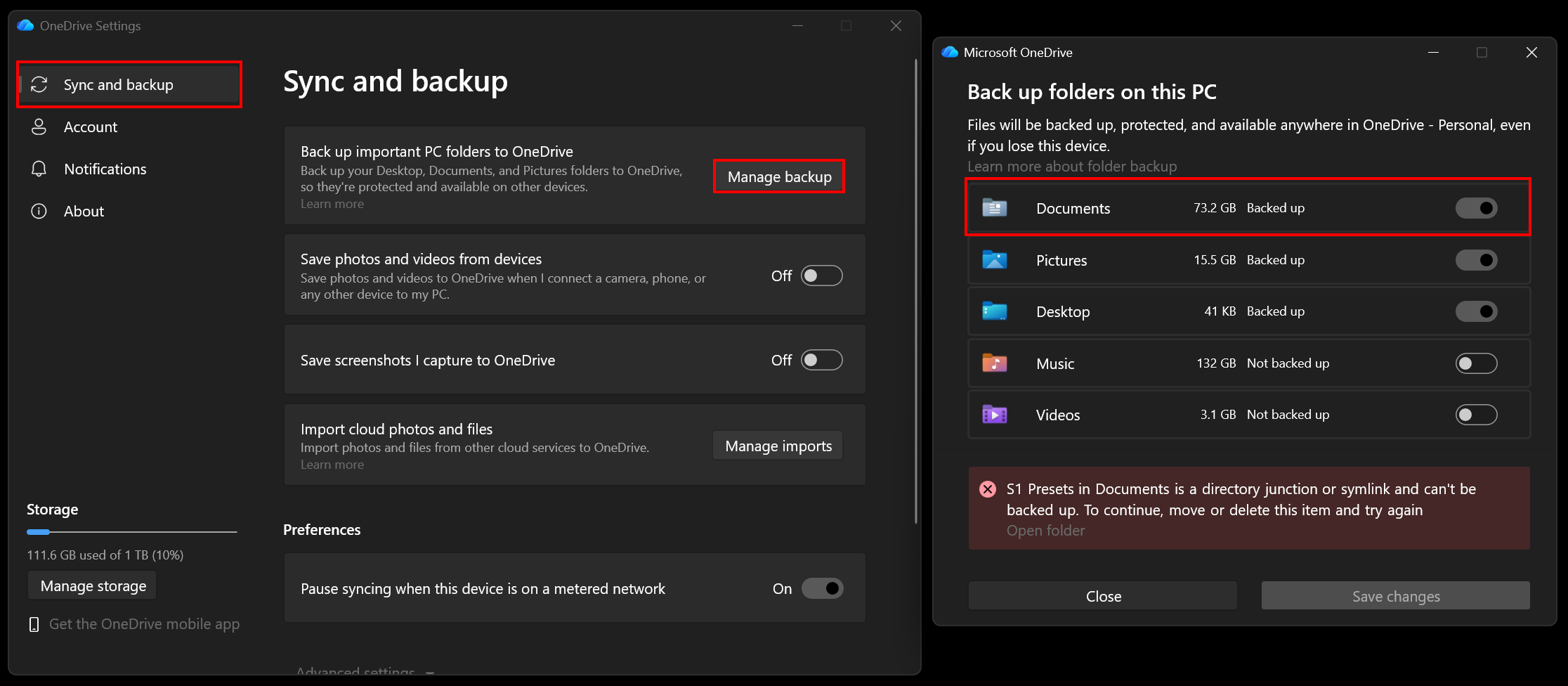
This is where OneDrive behaves differently from many third-party cloud services. Instead of acting as a separate folder that you opt into using, OneDrive can transparently replace the underlying file paths of these common directories.
As a result, files still appear to live in familiar places like Documents, but the actual path on disk changes.
Before OneDrive integration: C:\Users\YourUsername\Documents
After OneDrive integration: C:\Users\YourUsername\OneDrive\Documents
From the user’s perspective, everything looks the same. From an application’s perspective, however, that folder is now backed by a live synchronization service that may upload, download, or temporarily offload files depending on settings and availability.
This distinction, the path changing while the folder name stays the same, may lead to confusion around OneDrive and applications like FL Studio.
What is Cloud Synchronization?
One of the most common criticisms of Microsoft OneDrive is that it isn’t a “true cloud backup.” There is some truth to this, but it’s only half the picture. OneDrive’s primary function is not traditional backup; it is cloud synchronization.
Cloud synchronization means keeping files identical across locations. When a file changes on your PC, that change is mirrored to OneDrive’s servers and to any other devices linked to the same account. This happens continuously and often in near real time.
The majority of problems people attribute to OneDrive stem from not understanding this behavior. Synchronization acts like a mirror: whatever you do on one side is reflected on the other. If you edit and save a cloud-synced file on your computer, that change is written to OneDrive. If you delete a cloud-synced file locally, it is also deleted from OneDrive. Likewise, deleting a file from OneDrive’s web interface deletes it from your computer.
Most “OneDrive deleted my files” stories are actually cases where files were removed on one side without realizing the deletion would propagate everywhere.
It’s also important to understand where synchronization applies. In Windows, OneDrive’s live synchronization is primarily tied to the “Important PC folders” controlled through the Manage backup settings:
Documents
Pictures
Desktop
Music
Videos
When backup is enabled for any of these folders, they become cloud-synced. From that point on, changes, good or bad, are mirrored between your computer and the cloud automatically.
Cloud Synchronization vs. Cloud Backup?
So what’s the actual difference between cloud synchronization and cloud backup?
When people say that Microsoft OneDrive is “not a true backup,” what they usually mean is this: a true backup is disconnected from the original file. If you delete or modify a file on your computer, a proper backup copy should remain untouched and recoverable. It should be a true 2nd independent copy of a file.
Cloud synchronization does the opposite. Synced files are linked. Any change, editing, renaming, or deleting, propagates everywhere that file is synchronized.
That distinction is important, but it often leads to an incorrect assumption: “OneDrive can’t be used for real backups.”
That assumption is false.
Can OneDrive be used for unsynchronized backups?
Yes, absolutely.
OneDrive can function as a traditional cloud backup as long as the files are not part of a synchronized folder. You can do this by creating separate, manual folders inside your OneDrive storage that are not tied to Windows’ “Important PC folders” (Documents, Desktop, etc.).
This can be done by logging into OneDrive directly or by creating folders inside Windows File Explorer in your OneDrive path:
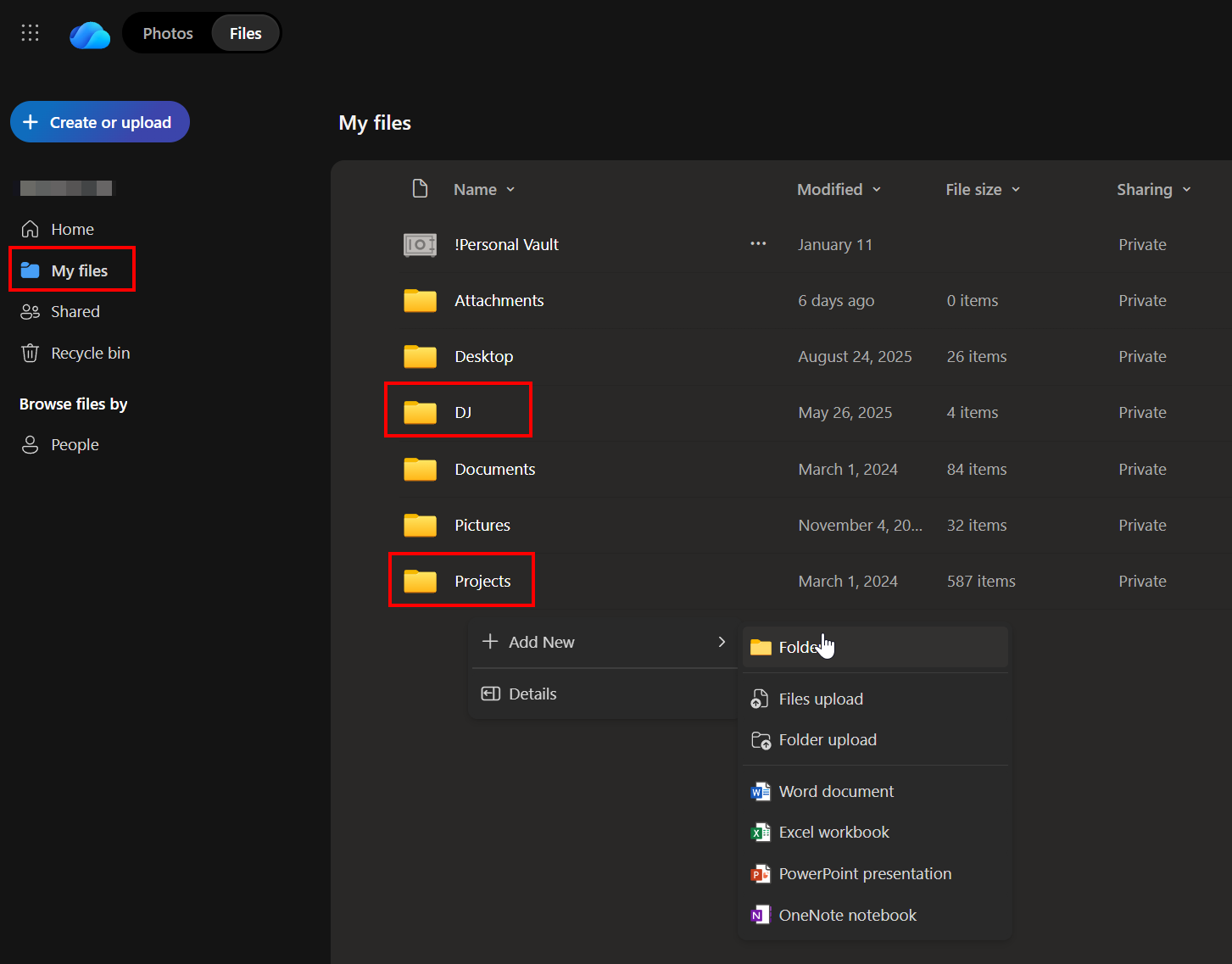
In my screenshot example, I have custom manual folders for storing music for DJing in ‘DJ’ and I have an additional backup folder for all of my music projects under ‘Projects’.
Files placed into these manual folders behave like true backups:
They are independent copies
They are not real-time mirrors of a local folder
Deleting or modifying the original file does not affect the backup copy
Changes made to the backup copy do not affect the original
In other words, OneDrive can act as both a real-time synchronization service 🔄, and a traditional cloud backup location 📂➜📂 .
The difference isn’t the service, it’s how the folders are used.
Understanding OneDrive Status Icons
One detail many users aren’t aware of is that Windows File Explorer can show a Status column for folders like Documents, Pictures, and Videos when they’re managed by Microsoft OneDrive. These status icons visually indicate whether a file exists locally on your machine, exists only in the cloud, or is actively syncing.
This is one of the easiest ways to diagnose potential issues before they affect FL Studio.
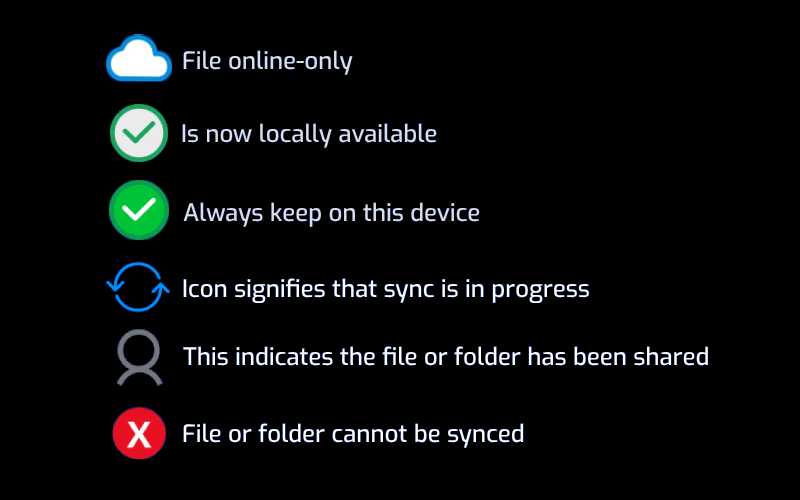
Default OneDrive Behavior (Safe for Most Users)
By default, OneDrive keeps files stored locally, and synced to the cloud. These files display a green checkmark with a white background, indicating they are fully available on the device and backed up online.
This default state is generally safe for FL Studio and most applications.
⚠️ Online-Only Files (Where Problems Can Start)
Files marked as online-only do not exist on your local drive. They are placeholders that download only when accessed. You have to explicitly enable this behavior by right-clicking a file or folder and selecting “Free up space”. This deletes the local copy and keeps only the cloud version.
While this can save disk space, it can cause problems if:
you’re offline,
the file hasn’t finished downloading,
or an application expects immediate disk access.
For FL Studio, especially when loading projects, plugins, or audio, this can lead to missing files or load errors. For that reason, it’s best avoided unless storage space is extremely limited.
✅ Always Keep on This Device (Recommended for FL Studio User Data Folder)
The opposite option is “Always keep on this device.”
When enabled:
the icon becomes a solid green circle with a white checkmark
the file or folder is guaranteed to stay local
OneDrive still syncs changes to the cloud
This is the ideal configuration for any FL Studio–critical folders that live inside OneDrive, providing the best of both worlds: local reliability with cloud protection.
🖕 Common Criticisms of OneDrive
Over the years, Microsoft has increasingly integrated services such as cloud storage, AI-assisted features, and online account services directly into Windows. As a result, many of these features, including OneDrive, are tied to the Microsoft account you use to sign in to your computer.
A common criticism comes from users who prefer their operating system login to remain separate from an online account altogether. Others express concerns around privacy, data collection, or the broader direction Microsoft has taken with account-based services. There is also understandable frustration around the fact that OneDrive is often enabled by default on new systems, rather than being something users explicitly opt into.
Another frequent and valid criticism is that Microsoft does a poor job of explaining how OneDrive actually works. Many users are never clearly told the difference between synchronization and backup, or that common folders like Documents and Desktop may be silently redirected to cloud-backed paths. Without that context, it’s easy to misinterpret OneDrive’s behavior when files change or disappear.
Much of the confusion surrounding OneDrive isn’t the result of malicious design, it’s the result of insufficient education. When users aren’t shown how the system works, they’re left to fill in the gaps themselves, and misinformation spreads quickly.
FL Studio Compatibility
Now that we’ve covered what OneDrive is, how synchronization works, and how Windows can redirect common folders like Documents, we can return to the real question: does this actually cause problems for FL Studio?
To answer that, we need to break down the cloud path warning one piece at a time, starting with the main item of concern:
User Data Folder
The User Data Folder is essentially FL Studio’s personal “home base.” It’s where FL Studio stores your user-specific content and settings, including things like your templates, plugin library, presets, recordings, and scripts. If you move computers or reinstall FL Studio, this folder is one of the most important locations to preserve.
You can view (and change) it under Options → File settings → User data folder
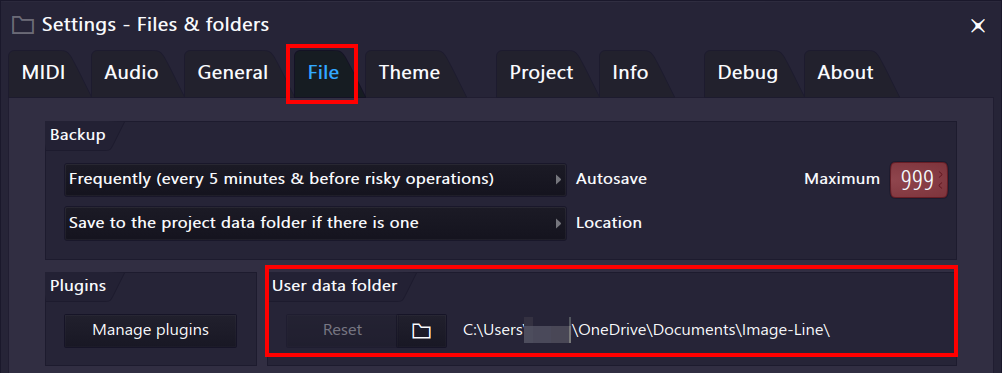
Default Paths:
Windows without OneDrive enabled:
C:\Users\YourUsername\Documents\Image-Line\Windows with OneDrive folder backup enabled (common cause of cloud path warning error):
C:\Users\YourUsername\OneDrive\Documents\Image-Line\
The key point is that FL Studio itself isn’t “choosing OneDrive.” FL Studio is simply following Windows’ idea of where your Documents folder lives. If Windows has redirected Documents into OneDrive, FL Studio’s User Data Folder ends up there too.
What’s inside the User Data Folder?
📁 This folder commonly contains:
Plugin database (Generators / Effects listings and organization)
Templates, themes, and UI settings
Custom presets (including Patcher presets)
Recorded audio (recordings, renders, sliced audio, depending on settings/workflow)
User scripts (Python scripts for Piano Roll / Edison / Patcher)
Other FL Studio user content and configuration files
🚧 Instability Issues Inside FL Studio
According to Image-Line, cloud-based storage and synchronization services can cause issues with FL Studio if they are not configured properly. The following is taken verbatim from FL Studio’s own knowledge base:
If the cloud storage system accesses the files to back them up at the same time as FL Studio is using them, you may experience crashes and other issues (see the list below).
⚠️ List of issues caused by cloud services
Crashes such as “Exception: Unable to open file” or “File not found”. Can be anything though. Read more about crashes here
Getting a “Critical error” message while opening a plugin
Multiple copies of the same plugin in plugin database
Missing FLEX packs that constantly require re-installing
Missing audio recordings in projects
After OS update (files may have been synced before updating)
🗝️ The Key Takeaway
The warning does not mean FL Studio is incompatible with OneDrive or other cloud services. It means that real-time synchronization must be configured thoughtfully.
In other words:
This is a warning, not an ultimatum
You may never encounter any issues at all
Problems typically arise only when cloud syncing overlaps with active audio production workflows
FL Studio is alerting you to a potential risk, not declaring something broken.
Other Important File Locations
Beyond the User Data Folder, there are several other file locations used by FL Studio that could lead to issues if they are cloud-backed and unavailable locally when needed.
If any of the paths below point to cloud-synced locations and files are online-only, mid-sync, or unavailable, you may encounter plugin loading errors, missing samples, or project warnings.
1. Plugin Search Paths🔌
Plugin search paths are configured in Plugin Manager and tell FL Studio where to look for installed plugins.
VST2 Paths
VST3 Paths
CLAP Paths
These folders should always be fully local. Plugins are loaded at startup and project open, and cloud-backed or online-only plugin files are one of the fastest ways to cause instability.
2. Browser Extra Search Paths 🔎
Configured in Options → File settings, these paths tell FL Studio where to look for user content.
Splice Packs, Drum Packs, Sample Packs
Miscellaneous Samples Used in Projects
These can live in cloud-backed locations if you understand the tradeoffs, but missing or online-only files may cause sample errors when opening projects.
3. Project-Specific Audio Paths 🎙️
FL Studio generates several types of audio files automatically while you work. By default, these are saved under the User Data Folder.
Recorded: Audio recorded directly into FL Studio via armed tracks. Typically saved to:
C:/Users/YourUsername/Documents/Image-Line/FL Studio/Audio/Recorded
Rendered: Audio rendered or consolidated back into the project. Typically saved to:
C:/Users/YourUsername/Documents/Image-Line/FL Studio/Audio/Rendered
Sliced audio: Audio created by slicing and re-saving clips via tools like Edison, Slicex, or Playlist actions such as Make unique. Typically saved to:
C:/Users/YourUsername/Documents/Image-Line/FL Studio/Audio/Sliced audio
If these folders are cloud-backed and files are not fully local at playback or load time, projects may report missing audio.
💎 Advanced: The Project Data Folder
The Project Data Folder is separate from the User Data Folder and is configured in the Project tab of FL Studio’s settings.
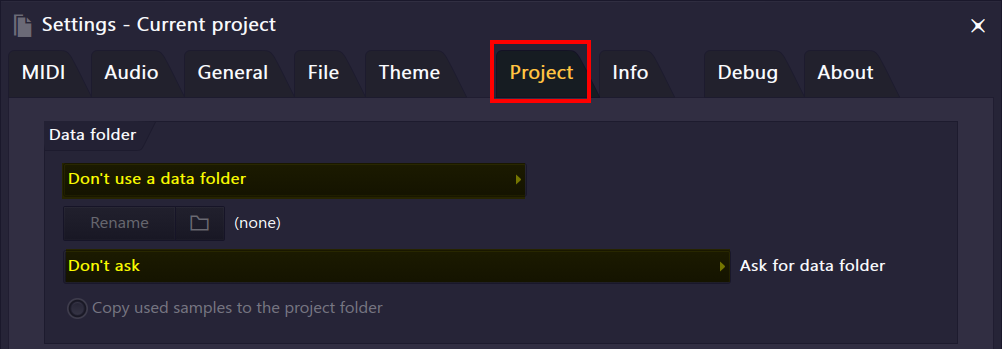
By default, no Project Data Folder is used. This means all recorded, rendered, and sliced audio flows into the global User Data Folder locations listed above.
Why use a Project Data Folder?
If your workflow is audio-heavy, you may prefer storing audio per project instead of in an unorganized shared global location.
You could change the setting for example to ‘Store data relative to the project file’ and set FL Studio to ask you for the data folder ‘when saving unsaved projects only’.
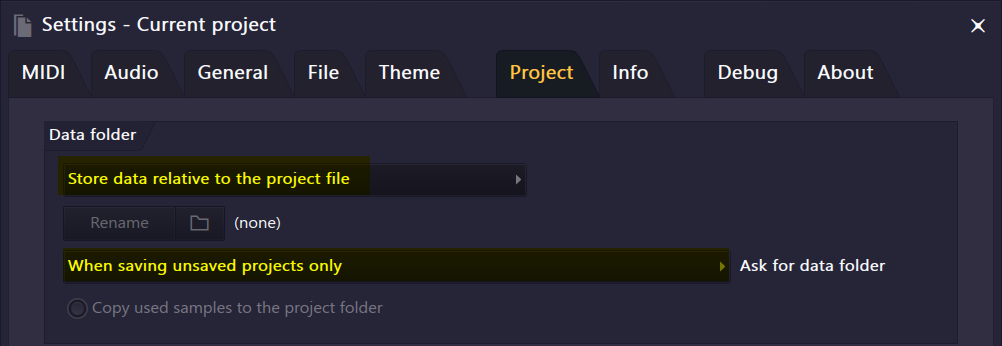
If you use the above example settings, then saving a project into its own folder like “C:\Program Files\Image-Line\FL Studio 2025\Data\Projects\January2026_GuitarProject“ will cause all recordings, renders, and slices created during that session to be stored inside that project’s folder instead of the generic Audio directories.
This approach:
keeps project audio files self-contained,
simplifies projects for backups/transfers,
reduces cloud storage usage for global folders,
and gives you fine-grained control over which projects live in cloud-backed locations.
Choosing custom Project Data Folders gives you some added flexibility in allowing yourself to pick and choose when and where you want files saved to locations that may or may not be actively cloud-backed. This is something to keep in mind later when considering things like cloud storage limits depending on if you use free or paid tiers.
🚩 Common Causes of Stability Issues
Cloud storage and synchronization services are not inherently problematic, but certain situations can introduce risk when files are stored in cloud-backed locations and accessed by real-time applications like FL Studio.
Below are the most common scenarios where issues can occur.
☁︎ Files marked as online-only (cloud-only)
Some cloud services allow files to exist in an online-only state, meaning the file is not actually present on your local disk until it’s downloaded on demand. Refer back to the section on OneDrive status icons to review OneDrive’s version of online-only files.
If FL Studio attempts to access an online-only file while you have no internet connection, or the file has not yet finished downloading, then you may see missing file errors, failed loads, or incomplete project data.
💡SOLUTION:
Make sure your important data and audio folders in FL Studio are never online-only, and that they are always saved local for offline use. The default behavior of OneDrive is to save files in such a way they are mirrored both locally and on cloud; so you really have to go out of your way to make files cloud-only.
🔄 Active synchronization during file use
Cloud services constantly monitor files for changes. If a file is being actively read from or written to by FL Studio while the cloud service attempts to scan, upload, or lock that file for synchronization, conflicts can occur.
This is especially relevant for:
live audio recordings
rendered files
plugin databases
project autosaves
In these cases, file contention can lead to crashes, corrupted files, or inconsistent state.
💡SOLUTION:
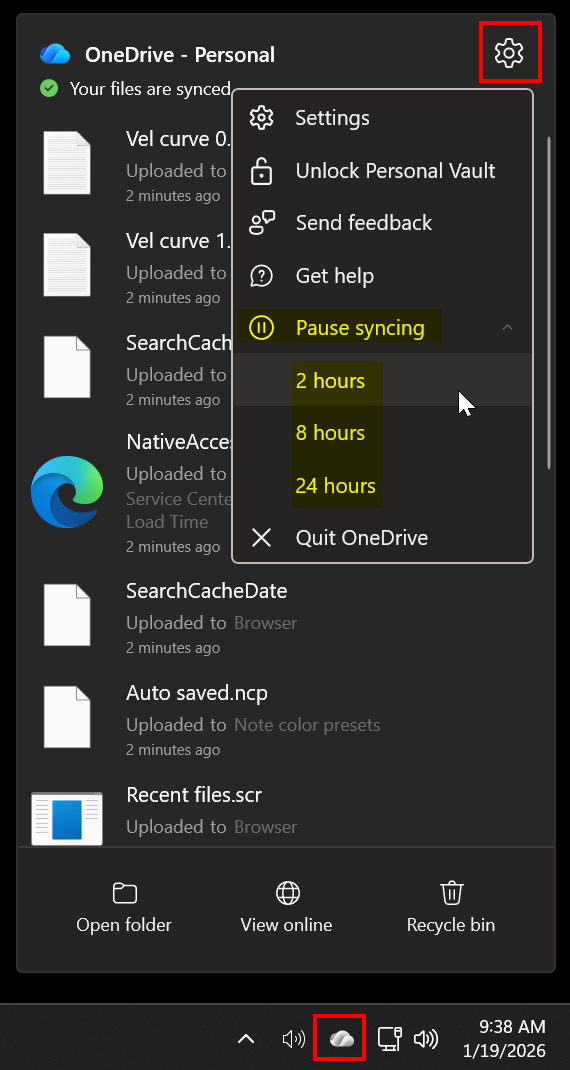
You can easily mitigate sync conflict issues by pausing OneDrive’s real-time sync whenever needed. Simply click the OneDrive location on your task bar, click the Settings Cog Wheel and choose to Pause Syncing for X Hours. You can click the cog wheel again and choose ‘Resume Syncing’ anytime you want OneDrive to return to real-time.
⚠️ Cloud storage capacity limits
If you reach your maximum allotted cloud storage space, new or modified files may fail to sync properly. Depending on the service and configuration, this can result in:
saves silently failing
partial uploads
files existing locally but not syncing correctly
For applications that assume immediate and reliable disk access, this can create unpredictable behavior.
💡SOLUTION:
Upgrade to a paid tier for more cloud storage, i.e. 100 GB of storage for about $1.99 a month to future-proof yourself, or consider saving your User Data Folder or project folders to locations that are not cloud-backed.
None of these scenarios are guaranteed problems, but they are the conditions under which cloud-backed paths can cause instability. Understanding and avoiding these situations is the difference between a smooth experience and a frustrating one.
Choosing the Right Configuration for Your Workflow
Now that we’ve covered what Microsoft OneDrive is, how it integrates with Windows, and which parts of FL Studio can be affected by cloud-backed folders, we can talk about configuration.
The first thing to understand is that there is no single “correct” setup. The ideal configuration depends on several factors:
the type of device you’re using,
how often you’re connected to the internet,
whether you pay for cloud storage,
and how you personally work inside FL Studio.
Rather than prescribing one solution, the sections below outline common this-or-that scenarios. Depending on where you fall, one approach may make more sense than another.
🖥️ Desktop PC vs. Laptop for Travel
If you’re installing FL Studio on a desktop PC that is:
always powered on,
typically hard-wired or reliably connected to the internet,
then you’re far less likely to encounter issues related to cloud synchronization. In this scenario, cloud-backed folders are usually stable and predictable.
On the other hand, if you’re using a laptop that you:
travel with frequently,
use offline for extended periods,
or move between networks often,
you may want to be more cautious. Offline access, delayed sync, and files marked as online-only are far more likely to surface in mobile workflows. In these cases, keeping FL Studio’s core working folders fully local can reduce friction.
💵 Free Tier vs. Paid Tier OneDrive
OneDrive’s free tier includes only 5 GB of storage, an extremely small amount in the context of music production. While this may not cause problems immediately, it can become an issue over time, especially if recordings, renders, or project data begin accumulating in cloud-backed locations.
If you don’t plan on upgrading, it may be better to avoid using cloud-synced folders for FL Studio data long-term and reserve that limited space for personal files like documents or photos.
Paid tiers change the equation significantly. OneDrive offers:
~100 GB for a low monthly cost of $1.99 a month (or $19.99 a year = ~$1.66 a month)
~1 TB at a higher price point of $9.99 a month (or $99.99 a year = ~$8.33 a month)
For most producers, even 100 GB is more than sufficient for FL Studio user data. If you’re on a paid tier, you’re far less likely to run into storage limits, and leaving FL Studio data in cloud-backed locations is generally safe and future-proof.
💾 Audio Heavy Workflows vs. Plugin Heavy Workflows
Your production style matters.
If your workflow involves recording a lot of audio (i.e. vocals, guitars, hardware synths, live instruments), storage usage can grow quickly. Multiple takes, comping, and rendered stems can consume significant disk space. If those recordings are being written into cloud-synced folders, you may:
hit storage limits faster,
encounter sync contention during recording,
or introduce unnecessary complexity into your workflow.
In these cases, keeping recordings local (or separating project audio paths from synced folders) is often preferable.
By contrast, if you primarily work with virtual instruments and plugins (i.e. Serum, Pigments, Kontakt, or Omnisphere), your workflow is typically more CPU and RAM-bound than disk-bound.
Most of these instruments:
install their libraries separately,
store large sample content outside FL Studio’s User Data Folder,
and are rarely affected by cloud sync behavior.
If this better describes your workflow, there’s generally little risk in leaving FL Studio’s user folders in cloud-backed locations.
🏠 My Personal Configuration
My setup is not meant to be a one-size-fits-all solution. However, I do want to share my own configuration and explain why it works well for me.
I’ve used FL Studio for years with all of my FL Studio related data stored under “C:\Users\MyUsername\OneDrive\Documents” without encountering any major issues.
I personally use a paid tier of Microsoft OneDrive as my primary cloud solution. I originally started with the 100 GB tier (roughly $20 per year), which felt more than reasonable for the peace of mind of knowing my music data was continuously backed up.
Why I Like My User Data Folder Cloud-Backed
I intentionally keep my User Data Folder synchronized because it contains assets I consider irreplaceable:
My default Template and .FLP projects
Every Python script I’ve written
Custom Themes and Piano Roll note color presets
MIDI scores, plugin presets, mixer presets, and Patcher presets
If my system were to suffer a catastrophic failure, such as a hard drive crash, I could reinstall FL Studio, restore my User Data Folder from OneDrive, and continue working with minimal disruption.
Cloud Sync + Traditional Backups (Not One or the Other)
Real-time synchronization is not my only backup strategy. I treat it as one layer in a broader system.
One thing I particularly appreciate about OneDrive is how cleanly it integrates into Windows File Explorer. That makes it easy to:
move files manually when needed,
script automated backups,
and avoid proprietary backup tooling.
In addition to OneDrive’s live sync, I run automated backups using ROBOCOPY (follow this blog for step by step instructions on how to do this yourself).
At a high level, I:
save a ROBOCOPY command as a
.batfile,schedule it via Windows Task Scheduler to run every morning.
Example Script:
Why This Works For Me
This setup follows a 3-2-1 backup strategy:
3 copies of my data
2 local (primary drive + NAS)
1 off-site (cloud)
I’ve lost data in the past due to hardware failure, so my current system intentionally combines:
live cloud integration,
scheduled automated backups,
and local redundancy.
All of this is fully compatible with using FL Studio daily, as long as the system is configured intentionally.
FAQs
-
You can simply check “Don’t ask this in the future” and click Continue when the warning appears.
If you ever want to re-enable warnings later, you can do so by going to:
Options → General settings → Hints & Warnings → Manage messages
This allows you to turn specific warnings back on at any time.
-
That decision is entirely up to you and depends on your personal preferences around cloud integration in Windows.
However, it is not necessary to uninstall OneDrive just because of FL Studio’s cloud path warning. If you want to avoid any potential risk from cloud-backed folders, you can simply move FL Studio’s User Data Folder to a location outside the OneDrive-backed Documents directory.
This approach lets you:
keep OneDrive enabled for normal document backups,
avoid cloud sync for FL Studio’s active files,
and eliminate the warning entirely without removing OneDrive from your system.
-
The short answer is: it’s possible, but unlikely for most users.
You’re generally fine leaving your User Data Folder in a OneDrive-backed location as long as:
you stay connected to the internet most of the time,
your important plugin files and audio files are stored locally and never set to online-only,
you pause OneDrive syncing if it ever interferes with a live project (a rare scenario),
and you stay comfortably under your cloud storage limit.
The more you work offline, travel frequently, or rely on very limited cloud storage, the more it may make sense to move your User Data Folder permanently outside of any cloud-backed location.
Otherwise, for many producers, the default setup works perfectly well—and the warning can safely be ignored once you understand what it means.
-
No. The warning is path-based, not service-based.
FL Studio will display the same warning for any cloud-backed or network-style path, including:
Google Drive
Dropbox
iCloud
OneDrive is simply the most common trigger because it integrates directly into Windows’ default folders.
-
Yes. You can safely move the User Data Folder at any time and copying and pasting the entire folder elsewhere.
After moving it:
Open FL Studio
Go to Options → File settings
Update the User Data Folder path
FL Studio will continue using the new location without breaking projects, as long as the files were copied correctly.
-
Yes, in most cases.
FL Studio writes audio to disk first; OneDrive sync happens afterward. Issues generally occur only if:
storage is full,
sync is heavily delayed,
or files are marked online-only.
For mission-critical recording, pausing sync while working in FL Studio is a simple precaution.
-
Yes.
By using manual folders inside OneDrive that are not tied to Documents or Desktop, you can drag copies of projects into OneDrive without real-time sync behavior.
This turns OneDrive into a traditional cloud backup instead of a sync service.
-
Leave plugins and sample libraries fully local
Keep FL Studio projects and User Data either:
fully local or
cloud-backed but Always keep on this device
Stay under your cloud storage limit
Pause sync during heavy sessions if needed
That’s it.
Conclusion
So can you safely use FL Studio with OneDrive?
YES
But only if you understand what OneDrive is actually doing and configure it intentionally.
The cloud path warning in FL Studio is not an error, and it’s not an instruction to uninstall anything. It’s a heads-up. FL Studio is simply telling you that some of the folders it relies on may be backed by a real-time synchronization service, and that under certain conditions, this could introduce risk. For many users, that risk never materializes at all.
Problems tend to arise only when:
files are made online-only,
cloud storage fills up unexpectedly,
synchronization overlaps with active recording or rendering,
or users aren’t aware that Windows has redirected key folders like Documents.
Once you understand those mechanics, OneDrive stops being something to fear and becomes just another tool, one that can be used safely, ignored entirely, or combined with other backup strategies depending on your workflow.
My goal with this blog was not to convince you to use OneDrive, nor to convince you to avoid it. It was to replace panic and misinformation with clarity. Whether you keep your FL Studio data fully local, partially cloud-backed, or split across multiple storage strategies, the “right” setup is the one that matches how you work.
As long as your critical FL Studio files are: available locally when needed, stored in paths you understand, and backed up intentionally, then you’re already doing things correctly.
As always, thank you.
LETT
