
How To Mix and Arrange Spotify Playlists Like a DJ for Smooth Song Transitions
Last Updated: November 2025
A guide by LETT: music producer, hobbyist DJ, and all around music nerd.
NOTE: This blog was originally written before Spotify introduced its in-app Mix feature. The main content of this blog covers using third-party tools to analyze a track’s key and tempo, and attempts to explain the underlying method for arranging playlists using that information. Even if you plan to use Mix directly inside Spotify, I recommend reading the full guide to understand what the numbers and letters (1A–12A, 1B–12B) mean and how they affect transitions. I’ve added a new section near the end that explains how to use Spotify’s Mix interface.
Table of Contents
Introduction
Why Playlists Matter
Today, more than ever, the way that people discover music is shifting more and more towards playlists rather than albums or singles. Playlists are a great way to capture the 'best of' something, whether it's what is newly released this week, what's popular at the moment, the best of an artist, the best of a genre, the best of a certain mood or vibe, etc. Playlists can give you the best variety of a specific sound that you can cater to the occasion. Music for a wedding? Music for the beach? Music for driving to? Music for studying to? It's understandable why the concept of a well-curated playlist is so valuable to so many people, because when done right, that playlist can become the perfect soundtrack to the moment.
Why Transitions Matter
We all have our own personal tastes, and it's not too hard to throw a large assortment of songs we like into a playlist and call it a day, but you've probably noticed that in some situations, some songs do not transition well from one to the next. Some songs are at vastly different tempos, different energy levels, volume levels, musical keys, etc. If you want to make a playlist that serves a purpose for being background music to enhance the atmosphere of wherever you are, you don't want to feel like you have to rush over to change the music when a really awkward song change occurs or risk losing the 'aux cord' privileges.
Why Spotify?
Today we have more tools than ever to peek “under the hood” of the music we listen to; tools that show tempo, key, loudness, energy, and more. These help us organize music intelligently and arrange playlists with intention. Most third-party tools tap into Spotify’s massive data warehouse (originally The Echo Nest) and their accessible public API, which makes Spotify the most practical platform for this guide.
This blog focuses on both third-party tools for analyzing key/tempo and Spotify’s built-in Mix feature, which now makes it possible to handle transitions directly inside the app.
NOTE: For those who do not have Spotify, there are websites that allow you to convert playlists from one music platform to another, such as TuneMyMusic but know that sometimes results may vary depending on the song availability between platforms.
Crossfade: An Important Spotify Setting for Smoother Transitions
Now let us get started. The first thing I recommend is enabling crossfade in your Spotify settings to allow the songs to overlap for gapless playback, so the end of one song smoothly trails off while the next song smoothly starts in over top of the end of the first song. This prevents every song from having to fully end for the next to start. I personally find 6 seconds to be a good sweet spot of not too short, and not too long. If your crossfade is too long, you run the risk of two songs being busy at the same time over one another and clashing.

Our Tools For Analysis
Here's the best site I have found so far to use to assist you in organizing your playlists to flow seamlessly from one song to the next, just like in a DJ set.
Spotify Playlist BPM & Key Analyzer
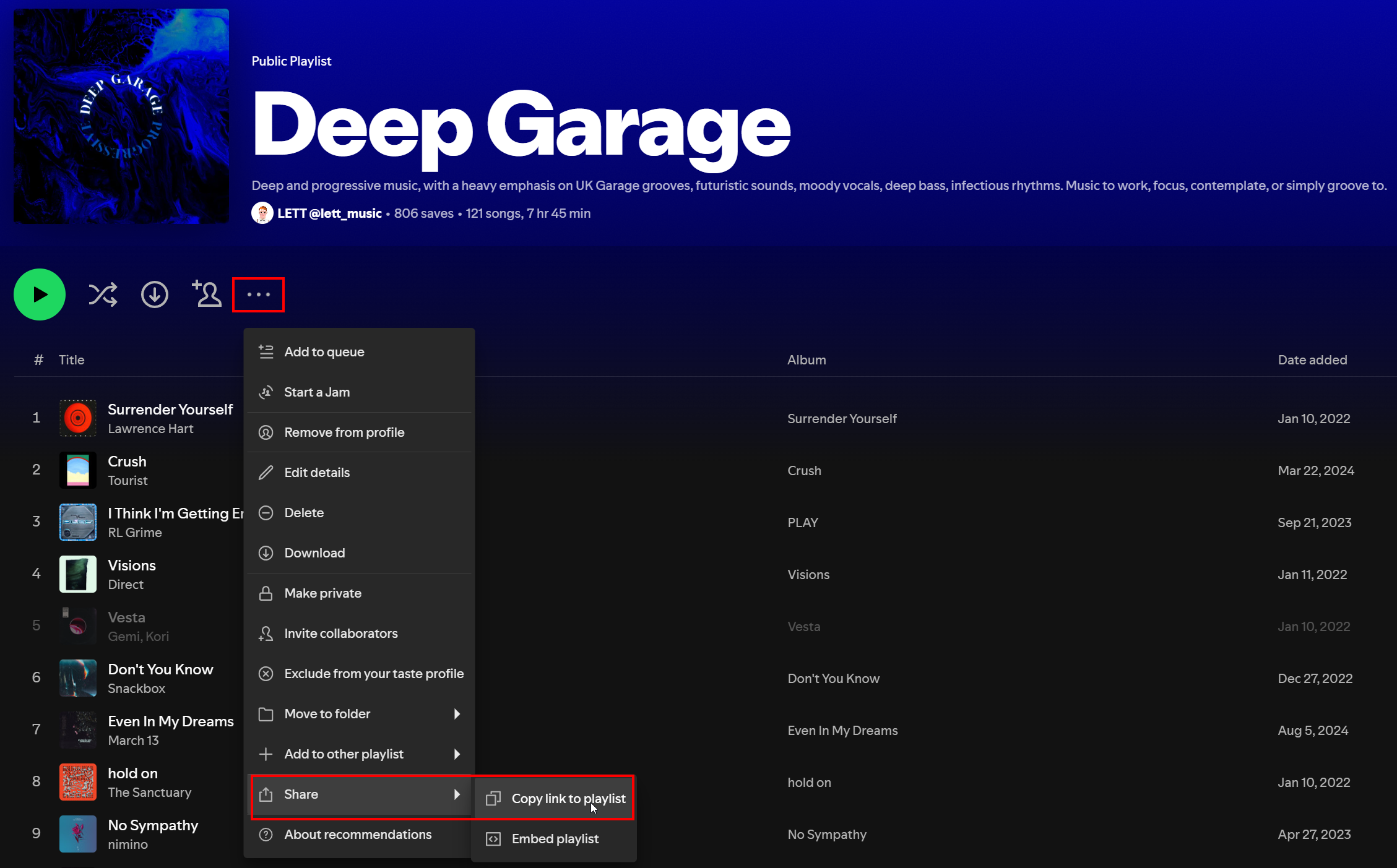
First, you need the URL of the Playlist you want to analyze, so open up the Playlist you want to arrange in Spotify, click the "..." dropdown and choose Share > Copy Link to Playlist.
Then paste this URL into the aforementioned site's search bar and hit enter, as shown below:

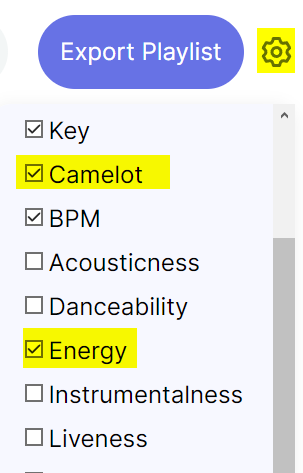
You should now see a list of the songs in your playlist, with a few columns. The first thing I recommend doing is clicking the cog wheel at the top right to add a few important columns. The most important being 'Camelot' which is a simplification of the key of song into a 1-12 system instead of letter system, i.e C, C#, D, etc. You can also add columns like Energy, Danceability, Popularity, Acousticness, Speechiness, etc. Any of these could also be useful in how you arrange your playlist if you desire. For now, I will just add Camelot and Energy.
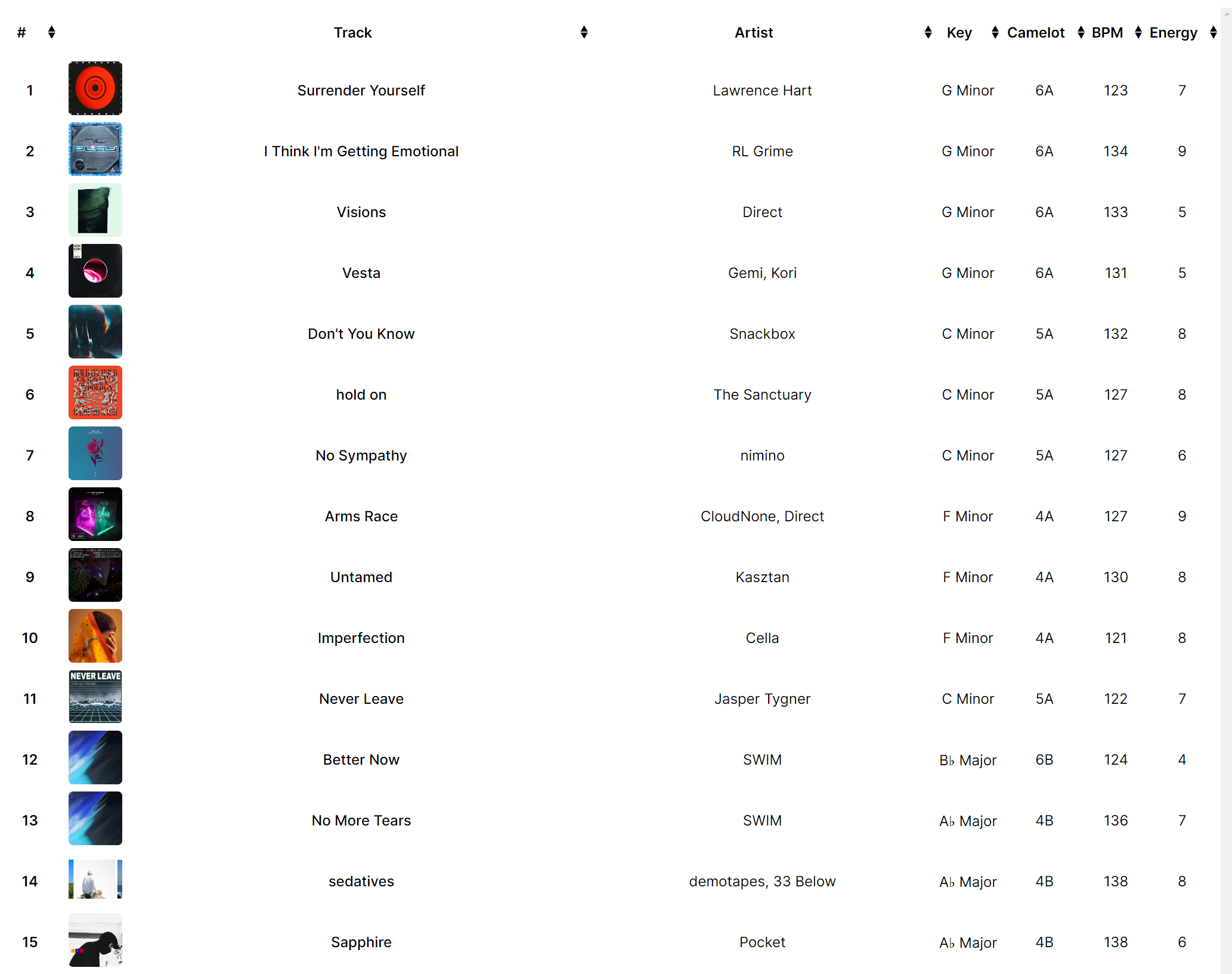
Below is an example of what one of my playlists looks like, which is already organized to flow harmonically from one song to the next, like how a DJ would mix from song to song to transition smoothly.
ONE FLAW: I’ve noticed that this Spotify Playlist Analysis tool can lose track of your custom order if you’re working on playlists with greater than 100 songs. You can still get the key and tempo, but unfortunately sometimes the site loses track of your custom ordering once you build up to a certain size.
The Camelot Wheel (Circle of Fifths)
The important column to notice is 'Camelot', which shows you the key of song from 1-12, A or B for Minor or Major respectively. The Camelot key is derived from a music theory tool known as the Circle of Fifths. Here's an example of the Circle of Fifths/Camelot Wheel, broken out with both letter key and Camelot key:
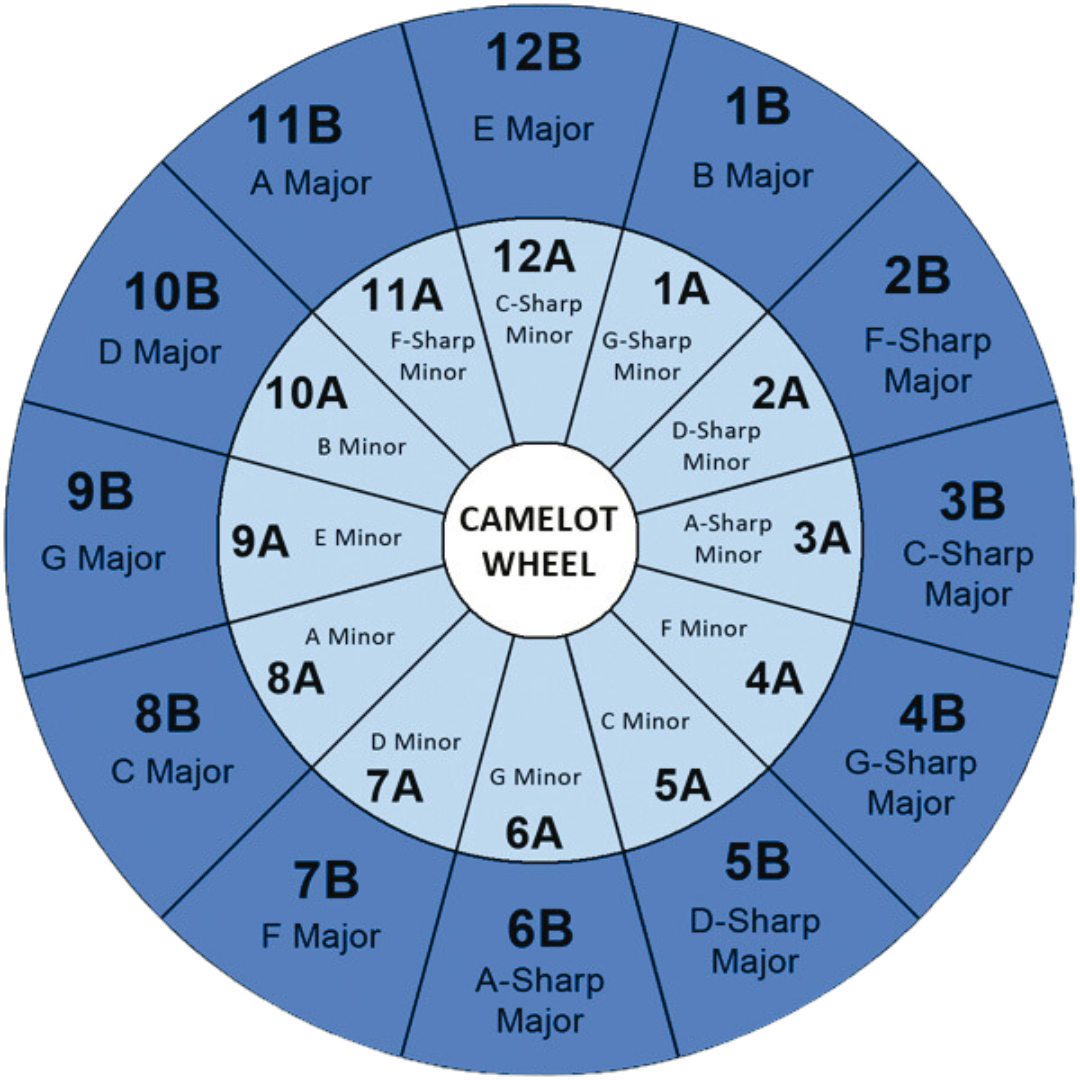
The nice thing about using Camelot key is that you do not have to pull up the Circle of Fifths to reference, or do 'letter math' in your head to count up a perfect fifth (or down a perfect fourth). You can simply just arrange like clockwork, either direction, 1-12 or 12-1.
| A Keys (minor) | B Keys (major) |
|---|---|
| 1A – A♭ minor (G♯ minor) | 1B – B major |
| 2A – E♭ minor (D♯ minor) | 2B – F♯ major |
| 3A – B♭ minor (A♯ minor) | 3B – D♭ major (C♯ major) |
| 4A – F minor | 4B – A♭ major |
| 5A – C minor | 5B – E♭ major |
| 6A – G minor | 6B – B♭ major |
| 7A – D minor | 7B – F major |
| 8A – A minor | 8B – C major |
| 9A – E minor | 9B – G major |
| 10A – B minor | 10B – D major |
| 11A – F♯ minor (G♭ minor) | 11B – A major |
| 12A – D♭ minor (C♯ minor) | 12B – E major |
Basic Music Theory
For anyone who wants a quick summary of the music theory behind why this Circle of Fifths is important, feel free to read this section, or otherwise skip ahead past the next line break.
You can think of the Circle of Fifths like a map of all major and minor scales, where scales that are right next to each other are like closer family members. If we take C Major (8B) or A Minor (8A), this family of notes is all white keys on a piano. Major or minor is just the relation of the intervals for every note in a scale. If we say a song is in C major or A minor, both songs use all the same notes, but the songs will want to resolve to or have its foundation based around the note of C or A respectively. Think of these relative scales like siblings, they share all the same 'DNA'.
If we go one step over to G Major (9B) and its relative E Minor (9A), one white key is swapped out with one black key (a sharp/flat). 6 out of the 7 notes in the key are the same, which means if you overlay a song in C major with a song in G major, they are likely to sound good together harmonically instead of clash with each other. If you go all the way around to the other side of the wheel, F# Major (2B) and D# minor (2A) are scales that are mostly black keys. Transitioning to or layering that with a song that's all white keys at the same time may sound very unpleasant or dissonant. The more keys a scale has overlapping with another, the greater compatibility it has for harmonic mixing.
How To Arrange
Pick a Great Opener to Set the Tone
Let's get started with arranging our playlist out by key. I recommend starting with picking your first song that will start off your playlist. It is beneficial if you can start with a song that already exists as an intro to an album, or has qualities of being a great intro track. It could also be a pivotal song within the genre or vibe/mood that you want to use to hook people right away.
In this short attention span world, you don't want people to close out of your playlist before the first song ends, so start with a real attention grabber or mood setter. This can more or less be the 'anchor' of your entire playlist, of which you can build in any direction you want. In my playlist earlier, my first track was in G Minor (6A). This means I want to look for every other track that is really close in Camelot key, any songs at 5, 6, or 7 ideally.
Move Like Clockwork
You do not need to overthink it from here, you can just arrange songs like 6 → 7 → 7 → 8 → 7 → 8 → 9 and so on. But if you want even better transitions, here are some extra bonus tips to consider. Songs will sound best if you transition from minor key to minor key, or major key to major key, so I recommend keeping either the number or A/B the same.
For example: 6A → 5A → 4A or 6A → 6B → 6A
If you do not have a ton of songs added to your playlist yet, you may not have enough songs to cover every key combination, but that's okay, just try and pick Camelot keys that are the closest neighbors. Going from 6A → 9A will still sound much better than 6A → 1B. One of my playlists for example looks something like the following:
(START) 12B → 12B → 10B → 11A → 9B → 10B → 9A → 9B → 10B → 10B → 10B → 10A → 10B → 9B → 9B → 8B → 9A → 9A → 9A → 8A → 9B → 9B → 9A → 9B → 9B → 8A → 8A → 8A → 8A → 8A → 8B → 7B → 7B → 7A → 7B → 7B → 6B → 6B → 5B → 4B → 4A → 4B → 3B → 3A → 3B → 3B → 2B → 2A → 1B → 1A → 12A → 12B → 12B → 12B → 11B → 12B → 12B → 12B → 11B → 11B → 11B → 11A → 11A → 11B → 11B → 10A → 10A → 10A → 10A → 10B → 8B → 11B → 10A (END)
(START) 12B → 12B → 10B → 11A → 9B → 10B → 9A → 9B → 10B → 10B → 10B → 10A → 10B → 9B → 9B → 8B → 9A → 9A → 9A → 8A → 9B → 9B → 9A → 9B → 9B → 8A → 8A → 8A → 8A → 8A → 8B → 7B → 7B → 7A → 7B → 7B → 6B → 6B → 5B → 4B → 4A → 4B → 3B → 3A → 3B → 3B → 2B → 2A → 1B → 1A → 12A → 12B → 12B → 12B → 11B → 12B → 12B → 12B → 11B → 11B → 11B → 11A → 11A → 11B → 11B → 10A → 10A → 10A → 10A → 10B → 8B → 11B → 10A (END)
Trial and Error
There's no perfect right or wrong way to do this. You can hang on a key as much as you want, or you can try and keep going around the wheel as fast as you want. You can jump 2-3 Camelot keys for a bigger energy shift. Play around with this and find things that sound great to you. Within Spotify, edit your playlist by dragging and dropping your songs around to re-arrange their play order. Rinse and repeat until your playlist is organized to your liking, by key, tempo, energy, danceability, etc.
I find that getting anywhere from roughly 30-50 songs in a playlist is a rough average of songs that you have more pathways to take around the Camelot Wheel without having to take such large tempo/key jumps from song to song. The more songs you add, the more variety you'll get and the shorter connections on the Camelot Wheel will reveal themselves.
💡Pro Tip: Bulk Editing in Spotify
Sorting a large playlist on mobile can feel cramped, so it’s often easier to handle the initial organization on the desktop app. You can toggle Mix mode to reveal each song’s key and BPM, which is a lot faster to reference than using 3rd party tools.
You can also use CTRL + Click or SHIFT + Click to select multiple tracks and move them together, perfect for grouping songs by tempo or key before you start fine-tuning transitions on mobile.
Here’s a quick screen recording showing this workflow:
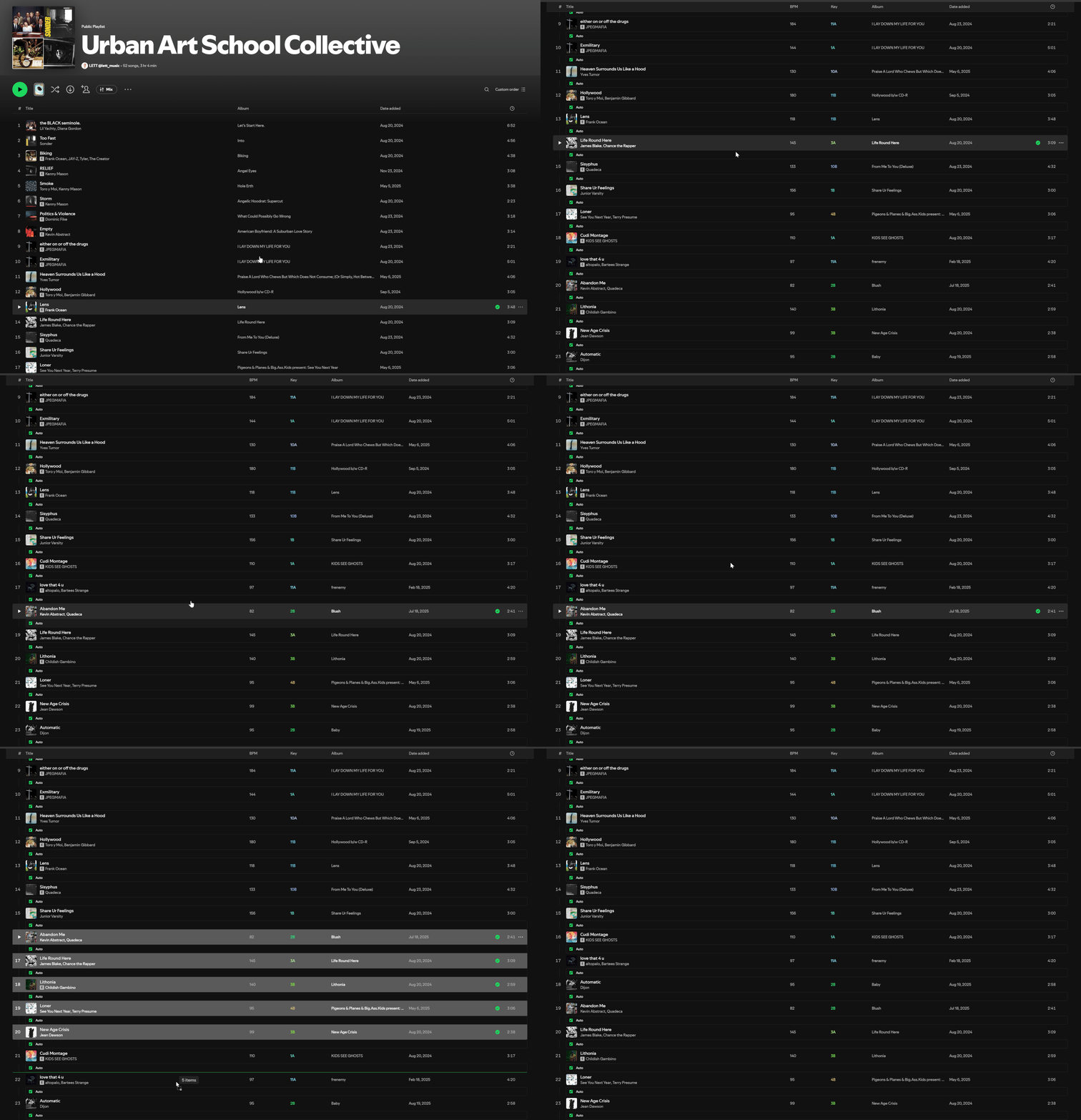
Once you have your songs arranged, you now have the ability to do custom transitions thanks to Spotify’s new Mix feature.
Spotify's Mix Feature
How to Start
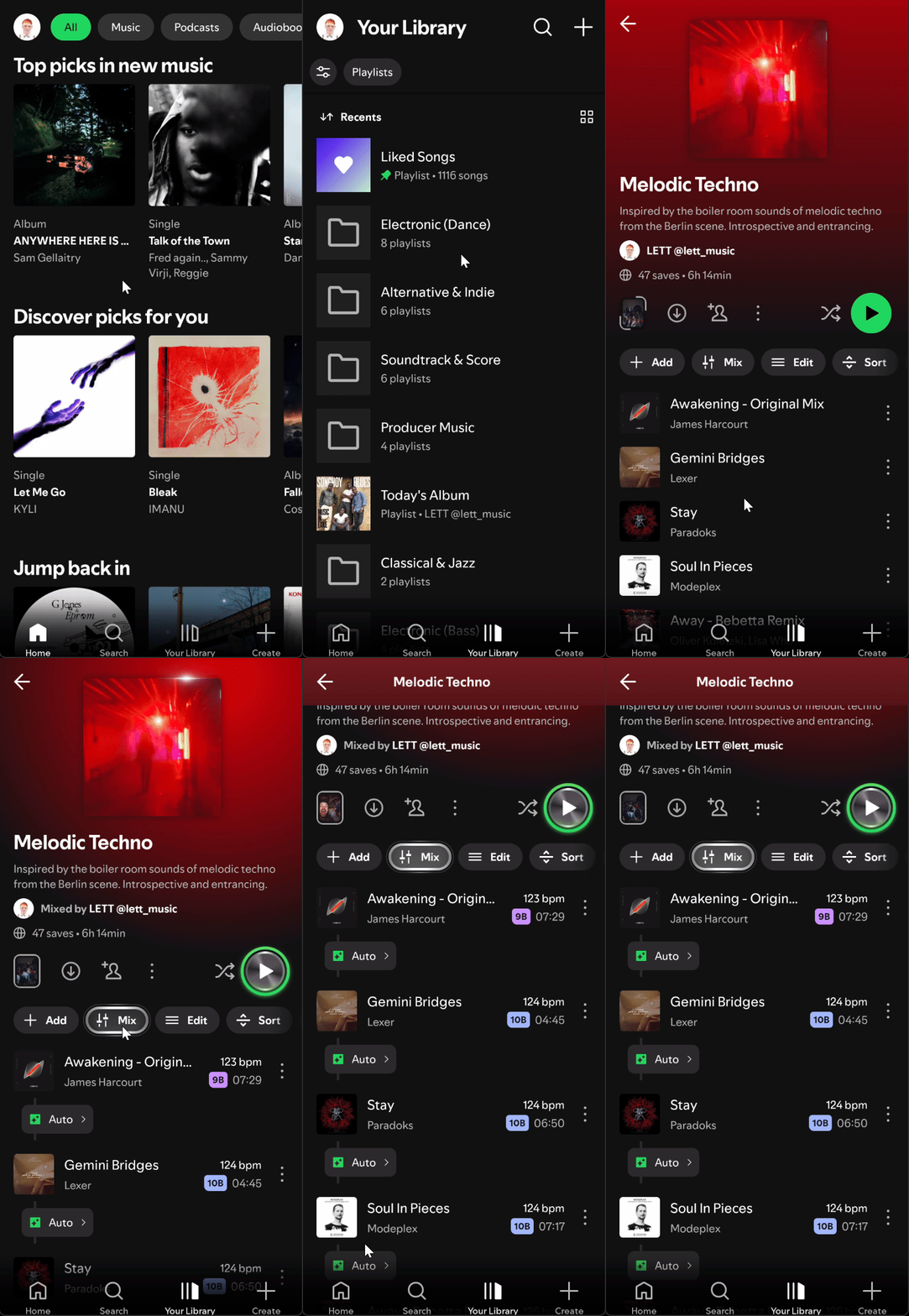
Spotify began rolling out its Mix feature in 2025. It currently works only on playlists you’ve created, not on albums or playlists made by other users. As of this writing, Mix is also mobile-only, so you won’t see it in the desktop app. (For demonstration purposes, I’m routing my Android phone into Windows with Phone Link to make screen recording easier.)
To enable Mix, open one of your own playlists in the Spotify mobile app and tap the 🎚️ Mix button.
Understanding the User Interface
After enabling Mix mode, you’ll see a few new elements appear on your playlist.
Each track now displays:
BPM (beats per minute)
Camelot Key (1–12A or 1–12B)
Duration (minutes:seconds)
You’ll also notice transition controls between songs. These default to Auto, where Spotify chooses a transition style based on the key, tempo, and other musical attributes. Tapping the transition brings up the options Spotify selected and lets you customize the blend if you want more control.
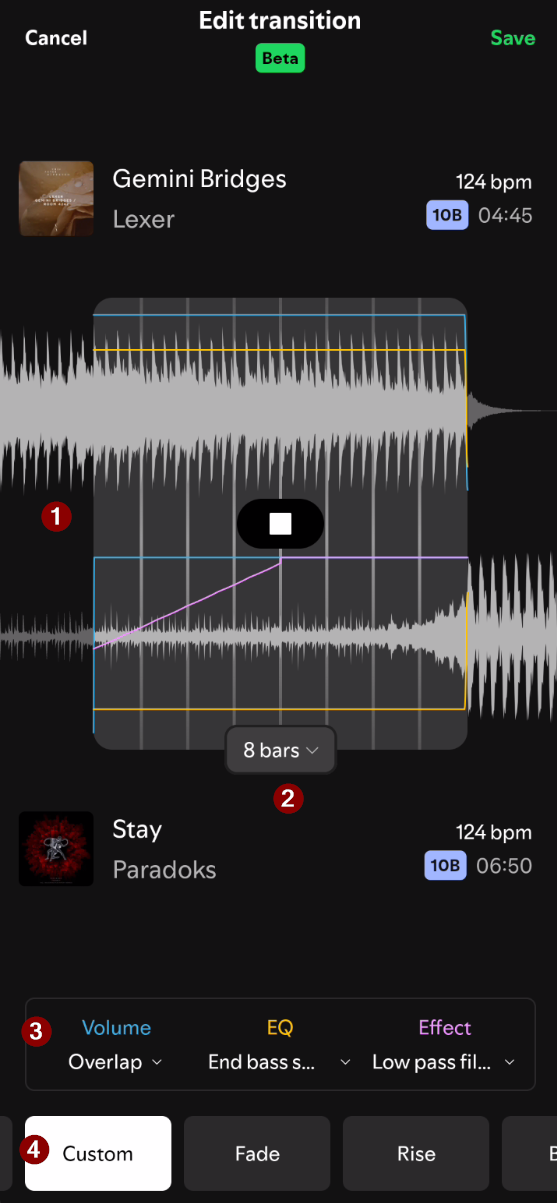
Here’s a breakdown of what you’ll see on the interface:
Spotify’s Mix UI
Waveform View
This stacked display shows both songs: the current track on top and the incoming track on the bottom. You can drag the waveforms left or right to adjust how the transition lines up.
NOTE: If you push a waveform past the allowed start or end of a song, Spotify will “snap” it back to the nearest valid position.
Bars Dropdown
This dropdown sets the length of the transition to 2, 4, or 8 bars.
NOTE: This only appears when Spotify detects a clear tempo or beat grid. Songs without strong rhythmic content may not give you this option and you will be left with a short transition option only.
Mixing Controls
These three buttons let you customize how the transition behaves. Tapping into one will show transition options for that control. You will see that transition represented on the waveforms, represented by the control’s respective color:
Volume (Blue): Controls the loudness fade between songs.
EQ (Yellow): Adjusts low, mid, and high frequencies independently.
Effect (Purple): Adds a low-pass or high-pass filter sweep.
Preset options which may serve as great starting points.
Auto — Spotify’s automatic choice.
Custom — Your saved settings.
Fade — Standard crossfade; bass swaps around the midpoint.
Rise — Overlap with bass swap at the end; low-pass in, high-pass out.
Blend — Overlap with a smooth 3-band EQ fade.
Wave — Overlap with bass swap at center; low-pass in and out.
Melt — New track fades in as old fades out; bass swaps at center; high-pass in/out.
Slam — A hard, centered volume swap.
The Beat Grid and Grid Markers

When Spotify detects a strong rhythmic structure, you’ll see long vertical grey lines behind the waveforms to represent bars. When you tap and drag a song, additional shorter markers appear between the waveforms to represent beats.
Most modern music is in 4/4 time, meaning each bar contains four beats. A four-bar count looks like:
1 2 3 4 | 2 2 3 4 | 3 2 3 4 | 4 2 3 4
The bold underlined downbeats at the start of each bar is what Spotify highlights in green. When mixing transitions, a good goal is to align the green markers from one track to the next so their downbeats hit together. Transitions tend to feel cleaner when the end of a bar in one song meets the start of a bar in the next.
NOTE: Mix mode isn’t perfect yet. Sometimes you won’t be able to align markers exactly because Spotify snaps to its own internal grid, which can be slightly off. Expect this to improve as the feature matures.
Now that we’ve covered the interface, let’s walk through a few custom transition examples to see how Mix works in practice.
Custom Transitions
Below are some examples of custom transitions to showcase just a few of many ways you can think about setting up transitions in their Mix interface.
Hard Cut At Center
Try lining up the Green Markers on two drops at the center of the screen and hard cut Volume and/or Bass EQ.
Keep the Energy Going, One Drop to the Next
Keep the energy high, while one drop/hook/chorus is finishing, tease in the next one and hard swap immediately to a high energy part of the next song.
When in Doubt, Smooth Crossfade
Not every song transition will show you beat grid lines, Bar dropdowns, etc. You will see ! bubbles appear next to the tempo, which if you click will give you more information.
When in doubt, a simple ‘Smooth crossfade’ Volume transition may be your safest attempt to connect songs that are harder to match up. Not everything has to be perfect on a grid, use your ears and stick the landing.
There are many more ways to transitions songs from one to the next in Spotify’s Mix feature. Try your best to match grid lines, play around with the provided presets, set up your transitions to your liking (at the start, center or end), and have fun mixing songs in your playlists!
Additional Tips for Better Playlists
Consider BPM/tempo.
A song at 130bpm will generally sound better going to another track at 130bpm than switching up to something like 175bpm. Try organizing your playlists to both harmonically transition, as well as stay around similar tempos. Maybe try building a playlist where the tempo slowly goes up, as you build up energy through the playlist. Consider pulling in a slower song or lower energy track if you've played a few high tempo/energy tracks back to back to back. Give your listeners some down time here and there to give your playlist more dynamic range, so it's not just one energy level all the time (unless that is your goal, i.e. always ambient).Consider how the end of one song sounds and the beginning of the next sounds.
Does one track end with a smooth outro, or is it really busy and ends abruptly? Does the next song start smoothly or does it kick you right in the gut from the get go? Try not to have two songs in which one ends busily and the next starts busily. If you have songs that start or end really abruptly, try to set them up next to a track that end or start smoothly respectively. This will ensure that your crossfade time (i.e. 6 seconds) does not overlap two busy moments at the same time.Pick a great closer track to end your playlist with.
If you really like a track as an outro to your entire playlist, that also gives you an 'anchor' point to try and work yourself around the Camelot wheel to end up on as the last song. Even better if your outro song ends up in a similar key to the very first song on the playlist, giving it the ability to be looped indefinitely back onto itself.
Conclusion
I hope you picked up something useful here and feel inspired to get more hands-on with your personal music library. A little time spent arranging songs with key, BPM, and now Spotify’s Mix tools can make a huge difference in how smooth and consistent your listening experience feels.
If you enjoy this kind of organization, DJing might be a hobby worth exploring, modern DJ software uses the same concepts like Camelot keys and tempo matching for real-time mixing. My goal is simply to show how accessible this side of music can be, even if you don’t have a deep theory background. Try arranging a playlist with these tools and see how quickly it replaces the old habit of hitting Shuffle.
Below are some examples of personal playlists I've arranged using these tools and concepts:



















🎲 Also feel free to explore more than 50+ of my curated and arranged playlists with my Spotify Playlist Randomizer with filter dropdowns to select by mood and instrumentation.
Thanks for reading.
LETT
